



Row moving
Change the order of rows, either manually (dragging them to another location), or programmatically (using Handsontable’s API methods).
Enable the ManualRowMove plugin
To enable row moving, set the manualRowMove option to true.
A draggable move handle appears above the selected row header. You can click and drag it to any location in the row header body.
import { HotTable } from '@handsontable/react-wrapper';import { registerAllModules } from 'handsontable/registry';
// register Handsontable's modulesregisterAllModules();
// generate an array of arrays with dummy dataconst data = new Array(200) // number of rows .fill(0) .map((_, row) => new Array(20) // number of columns .fill(0) .map((_, column) => `${row}, ${column}`) );
const ExampleComponent = () => { return ( <HotTable data={data} width="100%" height={320} rowHeaders={true} colHeaders={true} colWidths={100} manualRowMove={true} autoWrapRow={true} autoWrapCol={true} licenseKey="non-commercial-and-evaluation" /> );};
export default ExampleComponent;import { HotTable } from '@handsontable/react-wrapper';import { registerAllModules } from 'handsontable/registry';
// register Handsontable's modulesregisterAllModules();
// generate an array of arrays with dummy dataconst data = new Array(200) // number of rows .fill(0) .map((_, row) => new Array(20) // number of columns .fill(0) .map((_, column) => `${row}, ${column}`) );
const ExampleComponent = () => { return ( <HotTable data={data} width="100%" height={320} rowHeaders={true} colHeaders={true} colWidths={100} manualRowMove={true} autoWrapRow={true} autoWrapCol={true} licenseKey="non-commercial-and-evaluation" /> );};
export default ExampleComponent;Set a pre-defined row order
Instead of setting manualRowMove to true, you can pass an array of physical row indexes to define the initial visual order of rows on render.
Each position in the array corresponds to a visual (display) position, and the value at that position is the physical (source data) row index. For example:
manualRowMove: [2, 0, 1]This renders the rows in the following order:
- Visual position 0 → physical row
2 - Visual position 1 → physical row
0 - Visual position 2 → physical row
1
The array must contain all physical row indexes (its length must equal the total number of rows). After the initial render, users can still drag rows to change the order further.
Data model behavior
Moving rows does not reorder your source data array. Handsontable stores the new order as index metadata through its IndexMapper, and leaves the original sourceData array untouched. This affects how you read and save the data:
getData()returns rows in their current visual order, so it reflects any moves. Call it inside theafterRowMovehook to get an order-accurate snapshot to persist.getSourceData()returns rows in their original physical order, ignoring any moves.
To save the new order after a move, listen to the afterRowMove hook:
afterRowMove(movedRows, finalIndex, dropIndex, movePossible, orderChanged) { if (orderChanged) { const reorderedData = this.getData();
// persist reorderedData to your backend }}Don’t feed the snapshot back into the grid
Sending the reordered snapshot back to the grid as its new data applies the move a second time. updateData() keeps the current row order on purpose, so Handsontable re-applies the order map it already holds on top of your already-reordered array. One drag then moves the row twice.
Treat the snapshot as output only. Send it to your backend, and leave the grid’s own data alone.
Choose who owns the row order
The array you bind to data does not change when a user moves a row. The order lives in Handsontable’s index map, not in your array. There are two ways to handle that, and you have to stay inside one of them:
- Handsontable owns the order. You bind the data once, and read the order out when you need it.
- Your app owns the order. You cancel each move, and reorder your own array instead.
Writing getData() back into the bound data mixes the two models. The grid still holds the order map for a move it has already made, so it applies that order on top of your already-reordered array. Your data and the grid end up out of sync, and the row can jump a second time.
Let Handsontable own the order
This is the default. Bind data once and leave it alone. Read the current order with getData() whenever you need to persist it.
To start the grid with a non-default order, pass the array through initialState rather than manualRowMove. Handsontable reads initialState only when it creates the grid, so a re-render can’t apply the order a second time:
initialState: { manualRowMove: [2, 0, 1],},The array both enables row moving and sets the starting order, so don’t also pass manualRowMove at the top level. A regular setting takes precedence over the same key in initialState, so manualRowMove: true alongside the code above would discard the order.
A manualRowMove array passed as a regular option can be re-applied on a later update, which reorders the rows again on top of the order they are already in. How often that happens depends on the framework, so don’t rely on it not happening.
For more on this, see Non-idempotent options.
Let your app own the order
Return false from beforeRowMove to cancel Handsontable’s move, then apply the same move to your own array. Handsontable keeps its rows in physical order, so your array is the only place the order is stored.
In this model you also own the order’s history. Reverting a move is your code’s job, not the grid’s.
Cancelling the move changes what the grid does for you, so plan for these:
afterRowMovenever fires. The move stops atbeforeRowMove, before that hook runs, so the snapshot recipe shown earlier on this page does not apply here. Persist the order from your own update instead.- The grid does not re-render or restore the selection, because both wait for a move that actually happened. After the drag, the highlighted row headers stay where they were, and those positions now hold different rows. Re-select the moved rows yourself if that matters.
- The hook reports visual row indexes, and the helper below uses them as positions in your array. Those match only while nothing else reorders or hides rows. Add
columnSorting,filters, or trimmed rows, and a visual index no longer points at the same row in your array, so you have to translate the indexes yourself.finalIndexis a visual index too. - Cell metadata is keyed by the physical row. Reordering your own array moves the values but not the metadata, so per-row settings such as
readOnly, a cellclassName, or a comment stay on the position they were set on and end up on a different row.
This helper applies a move to a plain array. movedRows holds visual row indexes, and finalIndex is the index that the first moved row lands on:
function reorderRows(rows, movedRows, finalIndex) { const result = rows.slice(); const moved = movedRows.map(index => rows[index]);
// remove from the highest index down, so the lower indexes stay valid movedRows .slice() .sort((a, b) => b - a) .forEach(index => result.splice(index, 1));
result.splice(finalIndex, 0, ...moved);
return result;}Keep the rows in state, and write the new order back from the hook:
const ExampleComponent = () => { const [rows, setRows] = useState(initialRows);
return ( <HotTable data={rows} manualRowMove={true} beforeRowMove={(movedRows, finalIndex, dropIndex, movePossible) => { if (!movePossible) { return; }
setRows(prevRows => reorderRows(prevRows, movedRows, finalIndex));
// cancel the grid's own move -- the state update above already applied it return false; }} licenseKey="non-commercial-and-evaluation" /> );};For more on how physical and visual indexes relate, see Understanding data and indexes.
Result
After completing this guide, you can reorder rows by dragging them with the mouse or by calling dragRows() and moveRows() programmatically. You can also set a pre-defined row order at initialization.
API reference
dragRows vs moveRows
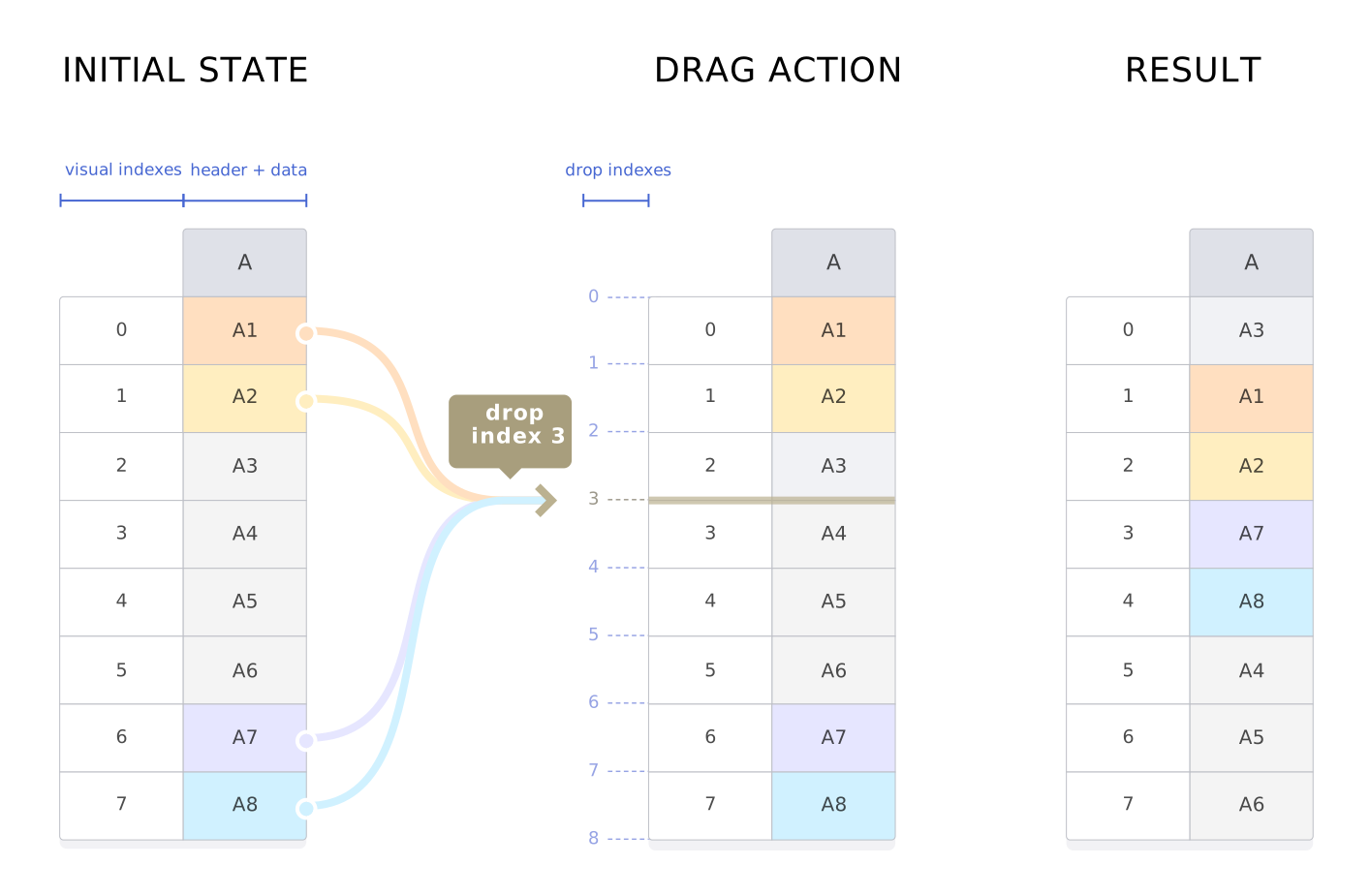
There are significant differences between the plugin’s dragRows and moveRows API functions. Both of them change the order of rows, but they rely on different kinds of indexes. The differences between them are shown in the diagrams below.
Both of these methods trigger the beforeRowMove and afterRowMove hooks, but only dragRows passes the dropIndex argument to them.
The dragRows method has a dropIndex parameter, which points to where the elements are being dropped.
The moveRows method has a finalIndex parameter, which points to where the elements will be placed after the moving action - finalIndex being the index of the first moved element.
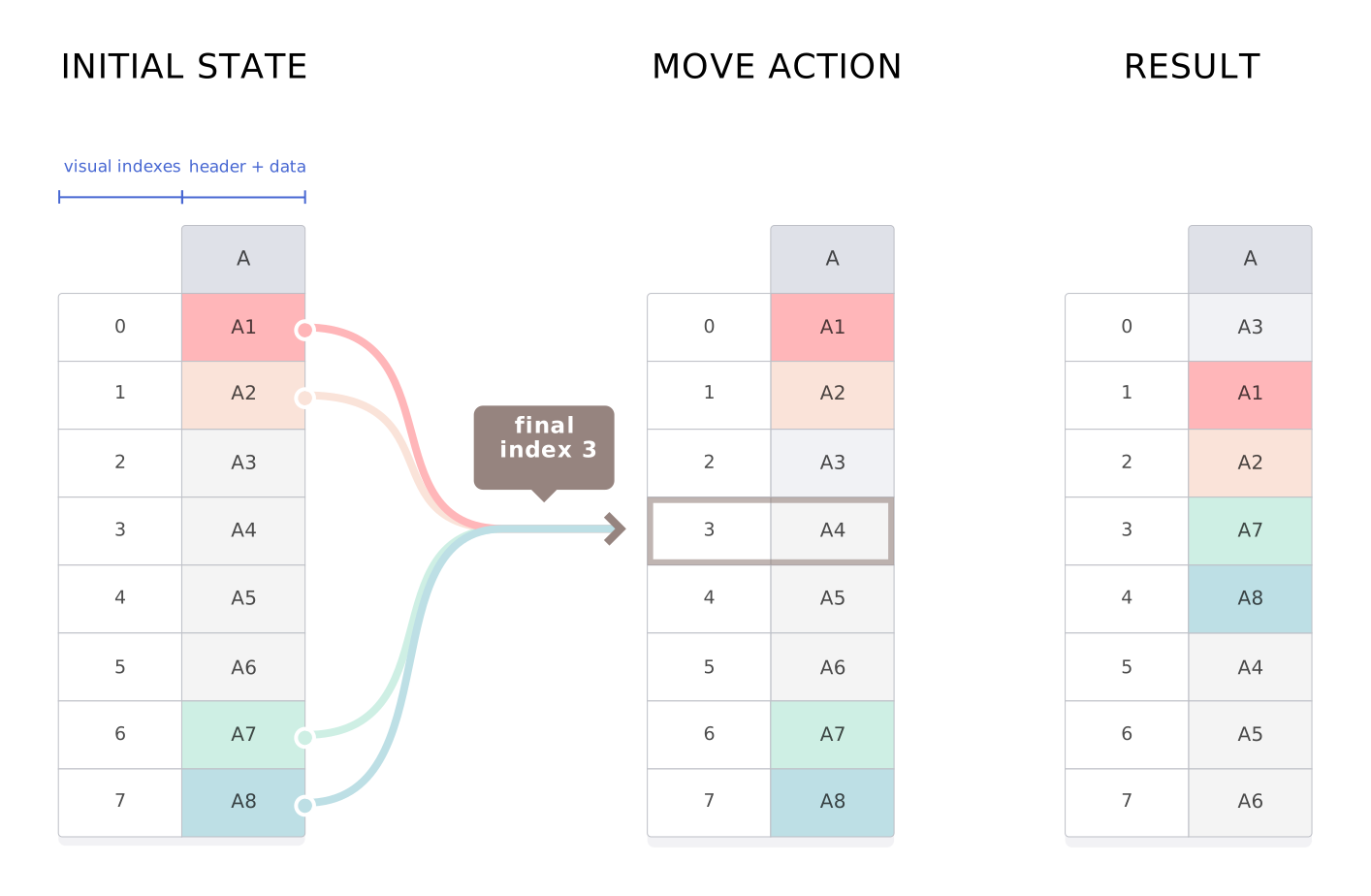
The moveRows function cannot perform some actions, e.g., more than one element can’t be moved to the last position. In this scenario, the move will be cancelled. The Plugin’s isMovePossible API method and the movePossible parameters beforeRowMove and afterRowMove hooks help in determine such situations.
The moveRows method is also inactive when the NestedRows plugin is enabled - see Row parent-child known limitations.
Related API reference
Configuration options
Core methods
Hooks
Plugins